Moving to IR Online can be a daunting process and scary prospect, but it can also be rewarding in many ways. As of the writing of this blog on 4/28/2025, ImageRight Online is on 24R2 and still in its early fun stages of expansion and development with many enhancements yet to come that we are all looking forward to. In the meantime there are a few things you must watch out for and keep track of daily until the core issues are found and resolved, one way to check to see if you have any flow issues is to check your tasks for errors and see if it is your code or Vertafore having other issues with ImageRight.
To start, you can check for tasks with errors, however if you do not see the "errors" bullet, you will have to scroll, here is an example:
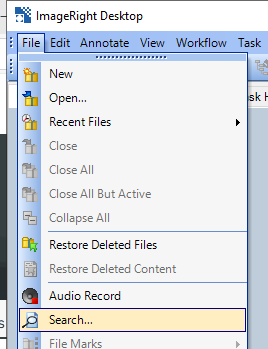
First open ImageRight Desktop, then click on File tab then on Search
Click the drop down for the Look for and select Task from the drop down
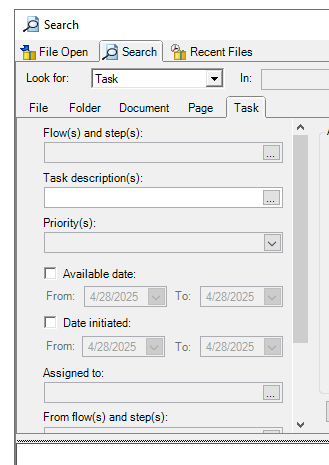
notice the scroll bar, drag it down and you will see the following:
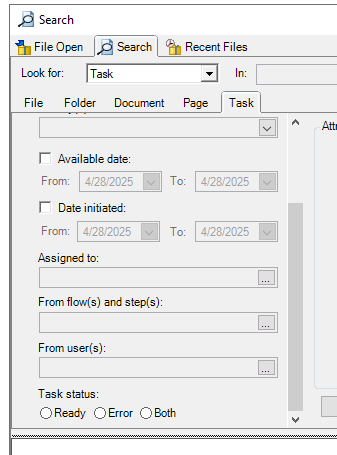
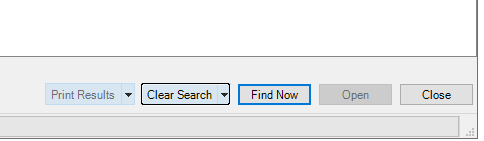
click on "Error" then click on the "Find Now" in the lower right:
here is the breakdown of what is going on from what I have observed online with the migration effort, and what I see daily
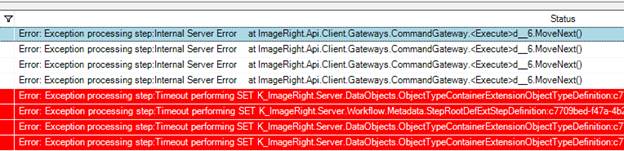
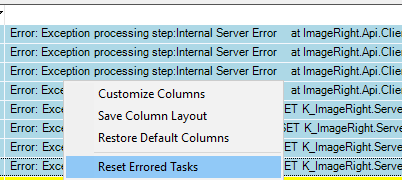
Notice the timeout set? this is daily, and that means that for whatever reason the code is timing out, not our code, Vertafore’s, so you can select all errored tasks and reset them by highlighting them all and right click your mouse then left click on "reset errored tasks"
however, if for any reason the system does not like your flow and has stuck threads, which I have seen, they have to reboot your app server, not just your utility server, otherwise tasks are "light" or "greyed out" and in a "ready" state with a gear on them, that does not mean your tasks have anything wrong with them, that means the tasks is unable to be worked yet do to how the workflow processor is working
this will need to be a daily ritual for someone at your company until Vertafore finds all the bugs in the process and works them out, keep an eye on tasks that are light green with a gear in "ready" state, those could stick around until the app server is rebooted, that is literally the only way to get them to be worked again, i have a sneaky hunch I know why this is happening but letting Vertafore discuss and research to determine the root cause, forgot to mention, once it says the tasks are reset, you have to click on "Find Now" again to see if the list clears.
Next important thing to understand, committing code changes or making flow changes, this one is downright frightening. When you open workflow studio, lock a flow and edit a step in a flow, when you go into its script, highlight the script 100% and copy it to a notepad document, save that copy and be ready to use it, why? Well, there is a very not so well known bug where when you commit your workflow changes and the system tells you that your commit was successful, it actually is not, so much so that your script is blown up, this will stop all tasks pointing to that step from working and stay in "Ready" state and it will stop all tasks assigned to that step from functioning.
In addition, you will know it has happened if you close the flow and try to open it again and it notifies you that your flow is still pending changes, on the step you have modified. If this happens, you will also have the following issue, if you right click on the step then subsequently try to go into and edit the script, you will be told by the system that an error has occurred and you can either click quit or continue, but at no point can you open the script anymore. That step is finished, can't be used anymore, so go and open Microsoft word and take screenshots of the different tabs, like the attributes and security tab, you will have to recreate the step and change all of the other steps that point to the old step, point to the new step by changing their task target.
This bring another bug up, the anchors, when you redirect the flows to the new step and tell it to change target for the anchor, after the first commit, the system creates new anchors to replace the anchors you just changed, this is a bug I have pointed out to Vertafore, ImageRight workflow should not re-create the moved anchors, but it does and it makes them active even if the original step is deleted with a forwarding link to the new step, so in your outbound link list you will see the new links, so watch out for those, because they can also stop you from committing your flows.
Lesson here is to make a screenshot of the flow you are in, the step you are modifying and all aspects of that step before committing it including script, be prepared to recreate the step and find everywhere the step is used to make sure you update any code since the new step name and script name can't match the original and the original step is completely broken.
Another thing is email receivers, this is a big deal, when you move to online, make a test email that you can send to the email receivers as a group so you can see in the email receiver list if they have and are receiving emails daily. We have observed emails taking moments to hours to flow and sometimes stop all together and we need professional services help to get them to flow again.
So setup a schedule that sends out a daily test email to all email receivers and make sure you have a checklist that you can go through that you can document when you sent the test and when or if the test was picked up by the receivers.
Cold imports, there is an issue with cold imports that is not well known, the folder length and the file name together if it is to long, will cause the import to fail, not just fail, but shut down the import service all together and no new imports will go into the system until professional services gets involved to see what documents failed, because the failure is on the back end, and even with the long file name option enabled, it still has a short limit, you are limited to your folder structure to be very short with your file name very short, only do to the file and folder structure prior to yours that is on the AWS server bucket where your files are located.
Try to keep your imported document folders limited in length to one word, not many, and try to keep your file names as short as possible, setup daily test routines that you can automate for email receivers and imports and above all, try to move away from using the desktop for anything user based and keep it only to workflow and enterprise management needs. Users will have a much better experience if they use the online web interface, it is smoother, faster and has a much better search feature.